Email (Regular) Leads

What is covered?
- Creating a New Lead
- Adding Opportunity Details
- Adding Lead Requirments
- Notes, Calls, and Documents
- Managing your Lead
Creating a New Lead
When a property seeker sends an email to inquire about your listing on Property Finder, an automated lead will be generated and assigned to the Agent handling the listing.
You can also create leads manually for clients you reach out to you through different channels.
Tip: If you have Call Tracking and WhatsApp Insights / Enterprise active, you will also find the Call and WhatsApp leads automatically generated in Call Leads and WhatsApp Leads.
To Create a new lead, click on the Screenshot 2023-07-04 at 10.16.12 AM.png icon to start adding the client’s details.
Adding Opportunity Details
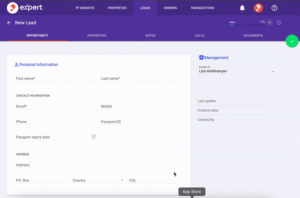
The Opportunity section contains “Personal Information” and “Lead Information” details:
Personal Information
Fill in the lead’s personal and contact details, mandatory items are marked with a (*)
First Name
Last Name
Email
Mobile
Phone
Passport / ID
Passport Expiry Date
Address
P.O Box
Country
City
Lead Information
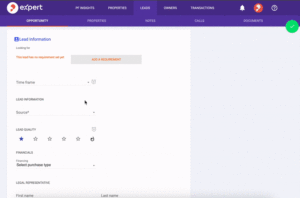
Lead information covers the client’s property requirements as well as the lead source, financial information, and legal representation if any. Mandatory items are marked with a (*).
Looking for (covered in Property Requirement)
Time Frame
Source
Channel
Lead Quality
Finance Type (Cash or Mortgage)
Legal Representation contact details
Adding Lead Requirments
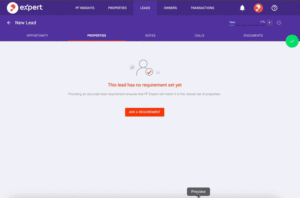
In the “Properties” section, you can identify the client’s needs and GP Expert will provide available listings for you to offer to your client.
Start by clicking “Add Lead Requirement” and select the client’s requirements
Tip: The more requirement filters you specify the better recommendations you will get.
Notes, Calls, and Documents
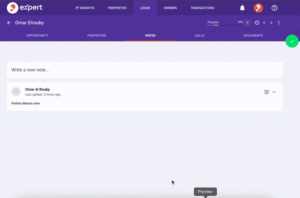
You add free text “Notes” that you can refer to later, they are especially helgpul if the lead gets assigned to another agent.
“Calls” will show any calls related to this lead. (Available only with Call Tracking).
The “Documents” can be used to upload files related to the lead, for example; Passport copy, ID, Contracts, etc.
Managing your Lead
Now that you have collected your lead details, add their requirements, your notes, and documents, here are the actions you can perform on the lead
Assign the lead to an Agent
You can re-assign the lead to a different agent by editing the lead and choosing another agent.
The new agent will receive a notification letting them know that the lead is now assigned to them.
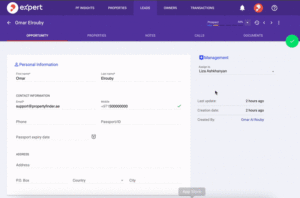
Change Lead Status
Each lead can be in one of the following statuses:
New
Prospect
Visit in Progress
Qualified
Contract Sent
Contract Signed
Not Ready
Not Interested
Called No Reply
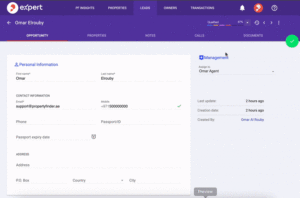
Tip: Keeping your leads’ statuses updated is a great way to revisit old leads or filter your current leads according to their status
Filtering Leads
Use the Filters to focus on the leads that need your attention, or simply to find a lead within the list.
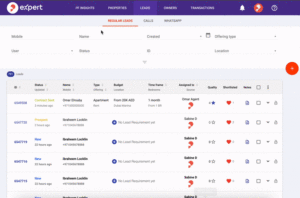
Exporting Leads
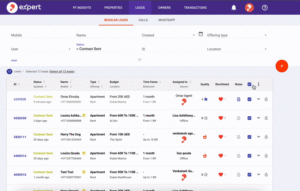
You can export your Regular Leads in CSV or Excel format if you wish.
Choose the leads you wish to export and click on the 3 dots for the Action Menu, then Export.
The Export file will be available for download in the Notification Center.
Recently viewed articles
No Recently viewed Articles Found.
Related articles
No Related Articles Found.