How to add a Lead?

1. To add a Lead on PropSpace, go to Work > Leads screen.
2. Click on “Add New Lead” and select the contact who has made the enquiry. Click on the Add or Select Contact link.
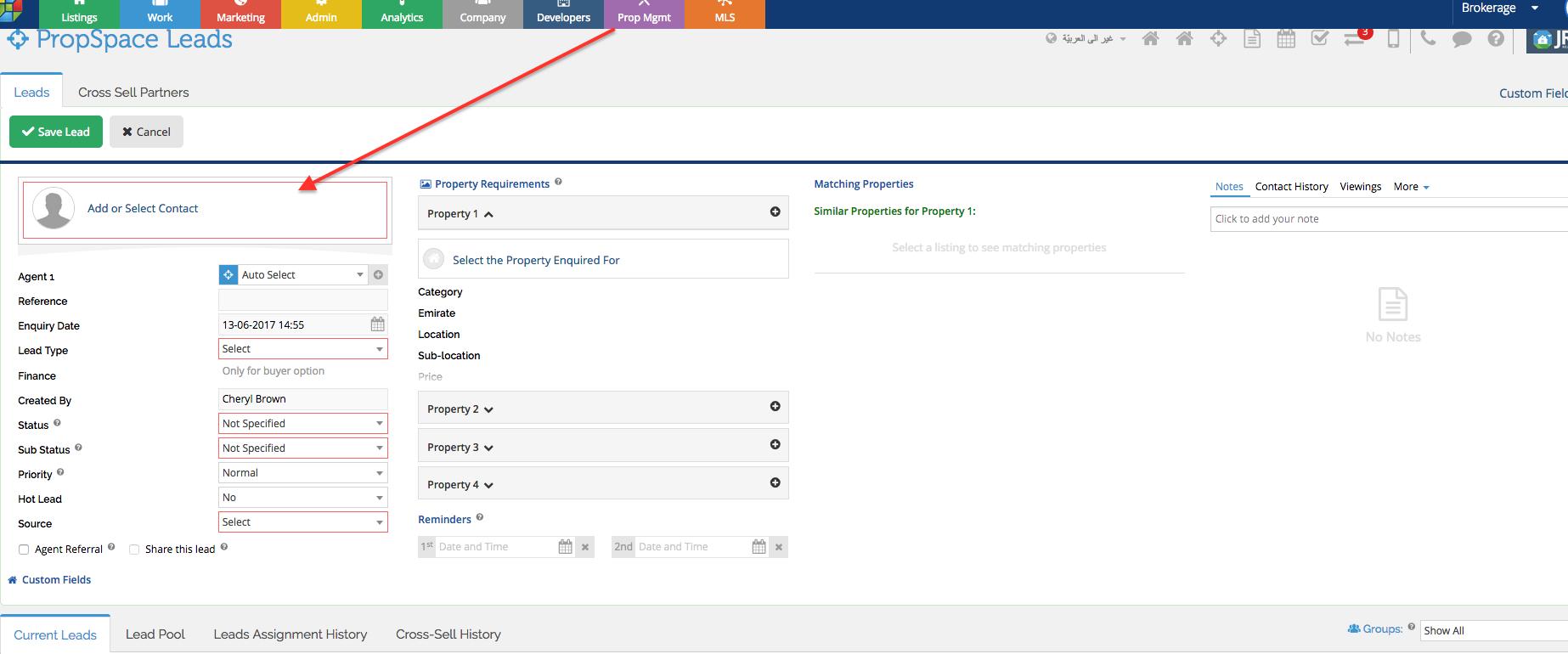
3. Search for the contact by name, number or email address to check if the person is already recorded as a contact in PropSpace. Click on Search to find matches, and it may be possible that the contact is already recorded by another agent. In that case, you can still create a lead with the contact, without access to the contact’s other linked leads.
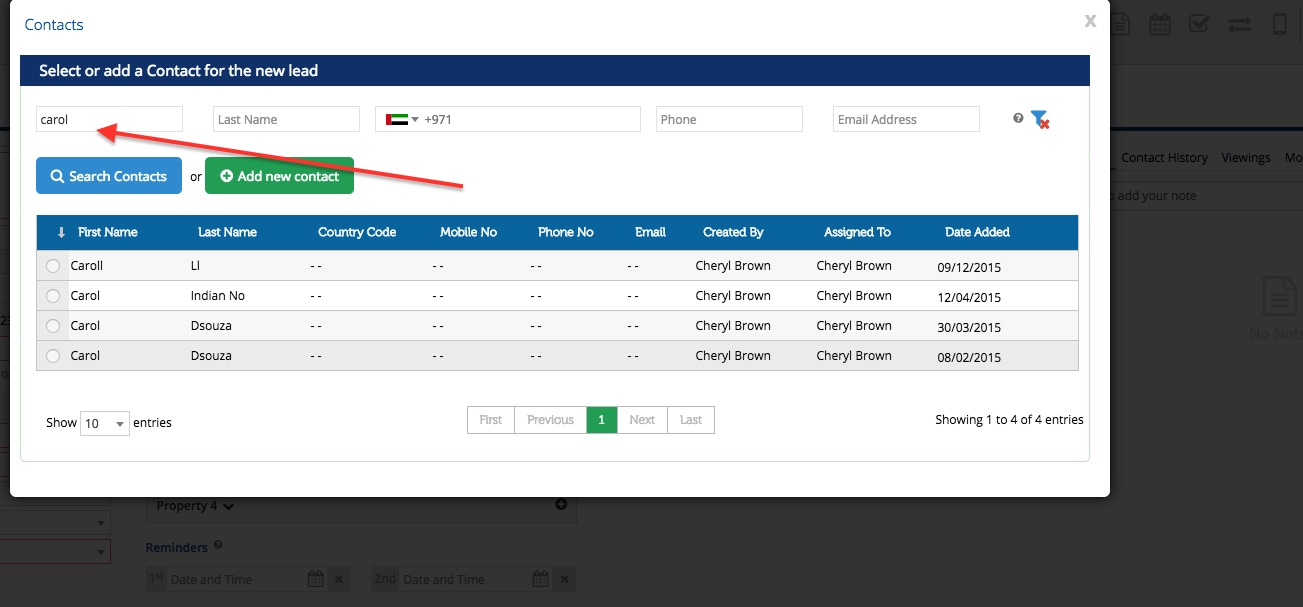
4. If you cannot find the contact in the system, click on Add New Contact and create a new contact.

5. Select the radio button for the Contact, and close the pop-up window.
6. Select the Lead Type (Buyer/Tenant/Seller/Landloard)
7. Select the status and sub-status of the Lead, depending upon its present state.
8. You can set a priority for a lead based on the response time urgency. You can also flag the lead as a Hot Lead if the client requires special attention or is a VIP client.
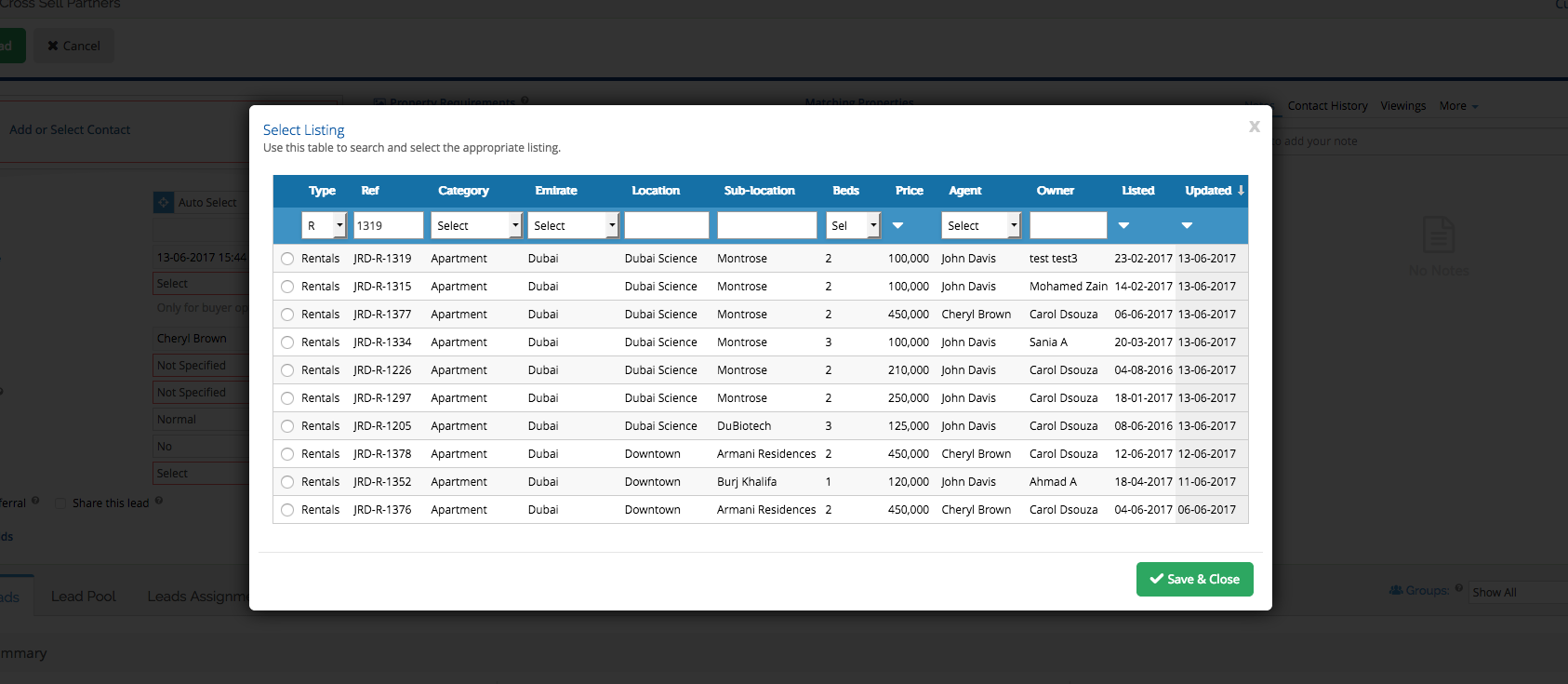
9. If the client has inquired for a listing you are advertising, click on the link “Select Property Enquired For” and select that listing.
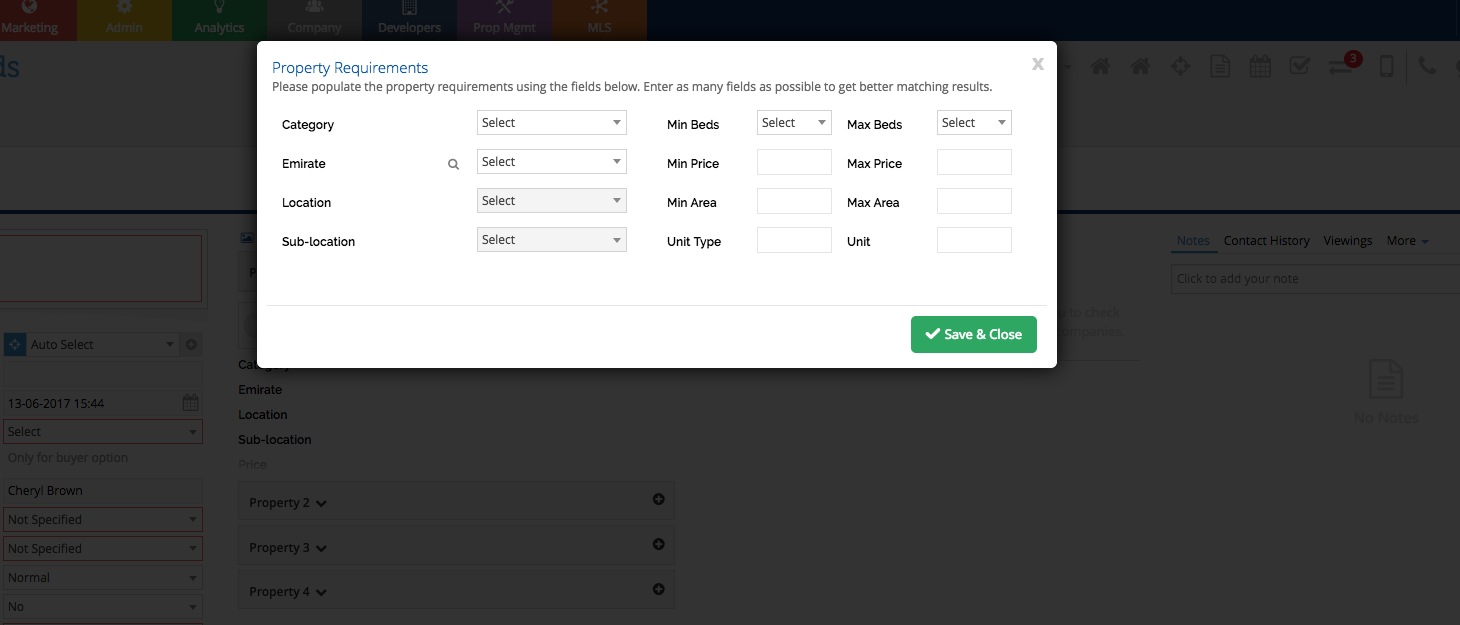
If the client has only given a set of requirements such as bedrooms, budget, etc., then populate the requirements by clicking on the + icon next to Property 1.
10. You can set up to 2 reminders to follow up with the client. The reminder email will be sent to the Agent to whom the Lead is assigned to.

11. Click on ‘Save Lead’ button when done with the changes. You will receive a window asking if you wish to send a welcome email to the new lead. You can choose whether to send the email or not.
Recently viewed articles
Related articles
No Related Articles Found.