Upgrade listings on GP Expert

Who can use this feature?

You can upgrade your listings to Featured or Premium to gain a higher position on the Search Result pages driving more impressions and leads.
What is covered?
How to Upgrade Your Listings?
 |
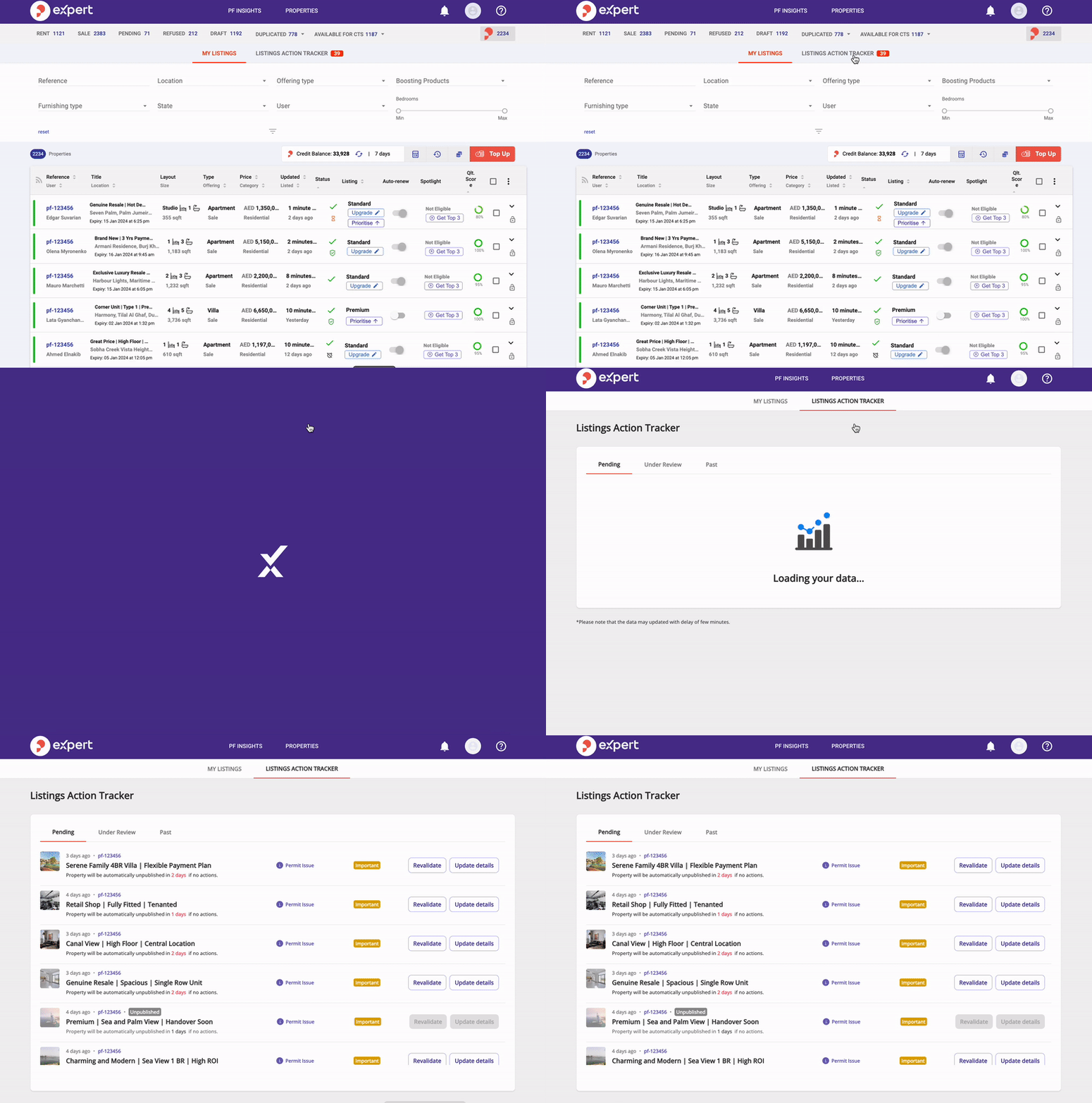
Go to: GP Expert> Properties > Select your listing > Click ‘Upgrade’ |
 |
Choose your Product (Featured or Premium) and Duration (15 Days or 1 Month) |
 |
Confirm the credit consumption by clicking Apply |
Types of Upgrades
There are 2 types of upgrades:
 |
Premium: Premium listings appear first on the Search Result page and provide the best visibility after Community Top Spot and Spotlight. |
 |
Featured: Featured listings appear after the Premium listings and above Standard listings. |
Note: If you keep Auto-renew enabled, your listing will renew the upgrade after it expires.
Frequently Asked Questions
If you upgraded a listing by mistake and would like to refund the credits consumed, please follow the below.
- Contact GP Support within 2 Business days of the credit consumption
- Unpublish the listing from GP Expert.
- Collect the credits available to you in Eligible for Credit Return.
- Republish the listing without an upgrade.
- The Support Team will raise the request to refund the remainder of the amount to your account (Subject to approval)
Yes, you can upgrade a Featured listing to Premium.
No, however, you can disable auto-renew to ensure that the listing does not renew the upgrade.
Recently viewed articles
Related articles
No Related Articles Found.